Tesla Powerwall 2 Reset guide
Tesla Powerwall 2 Troubleshooting & Reset Guide
1. Checking the Basics
Open the Gateway
- Use the latch on the right-hand side to open the gateway.

- Ensure all fuses are in the up position.
- Watch this short video for guidance: Powerwall Gateway Check

- Ensure the gateway is properly closed after!
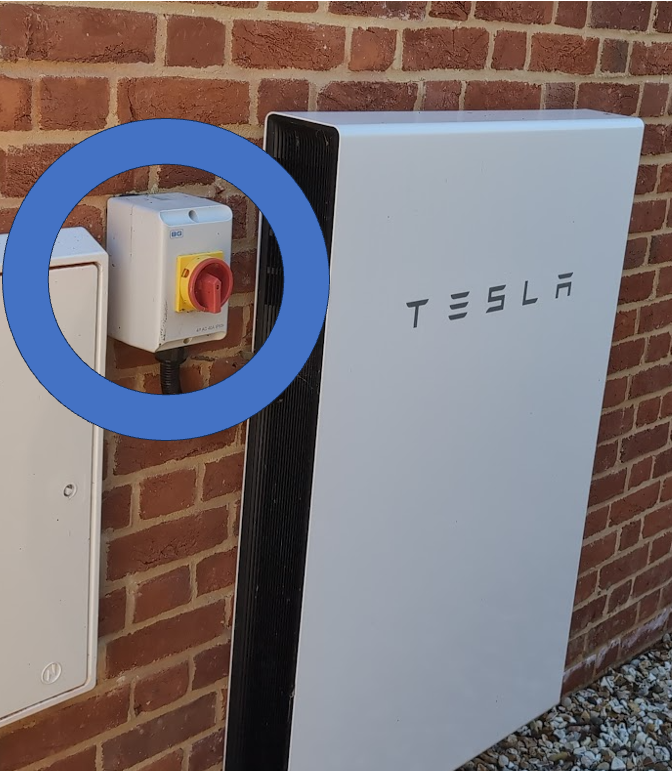
Red Rotary Isolator
- Ensure the red rotary isolator next to the Powerwall is in the ON position.
-
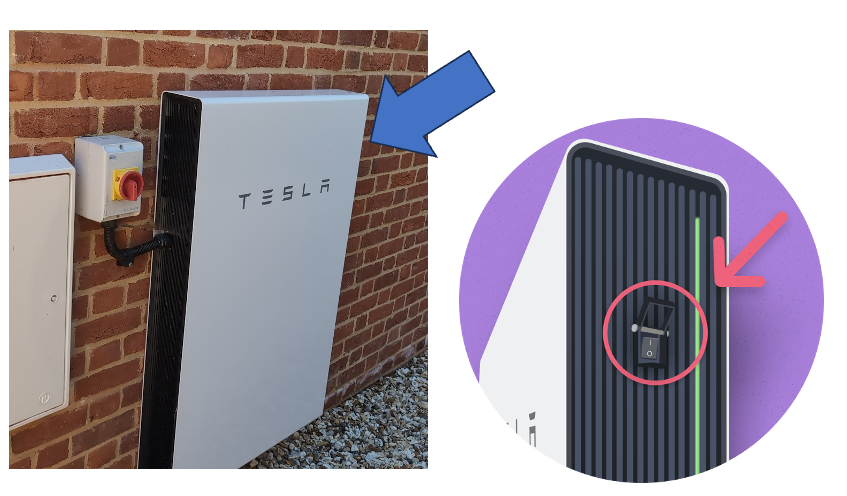
On/Off Toggle Switch
- Check that the toggle switch on the Powerwall is turned ON. you may need to lift the locking latch covering the button to check
2. Rebooting the Powerwall
If the above checks are ok and the system still isn’t functioning correctly, a reboot may resolve the issue.
Step 1: Turn Off the Powerwall
- Use the red rotary isolator next to the Powerwall to disconnect the system from power.
-
- Turn OFF the enable switch on the right-hand side of the Powerwall.
-
Step 2: Wait
- Leave the Powerwall off for 1–2 minutes to ensure the system fully powers down.
Step 3: Turn On the Powerwall
- Turn ON the enable switch on the right-hand side of the Powerwall.
- Switch the red rotary isolator back to ON.
3. Resetting the Gateway
If the Powerwall still isn’t operating correctly:
- Open the gateway door using the latch on the right-hand side.

- Using a pen or similar tool, insert it into the reset hole on the gateway.
- Press and hold for a few seconds .
-
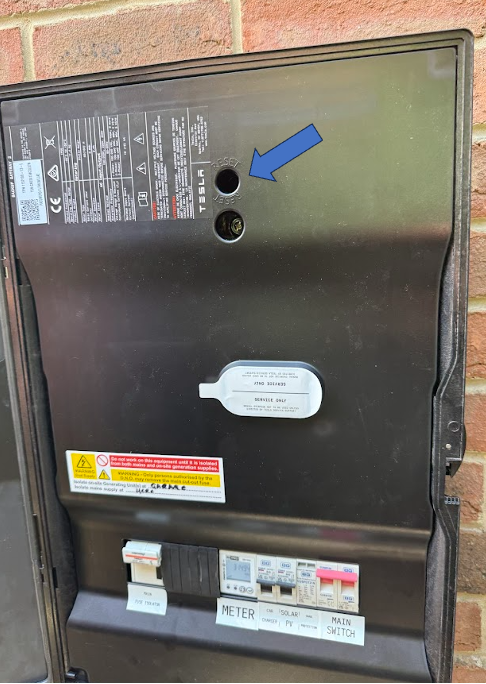
Ensure the gateway is properly closed once finished
4. Further Troubleshooting
If the Powerwall still does not operate correctly:
-
Contact Tesla Support
Telephone: 01628 450630
Email: energysupportemea@tesla.com